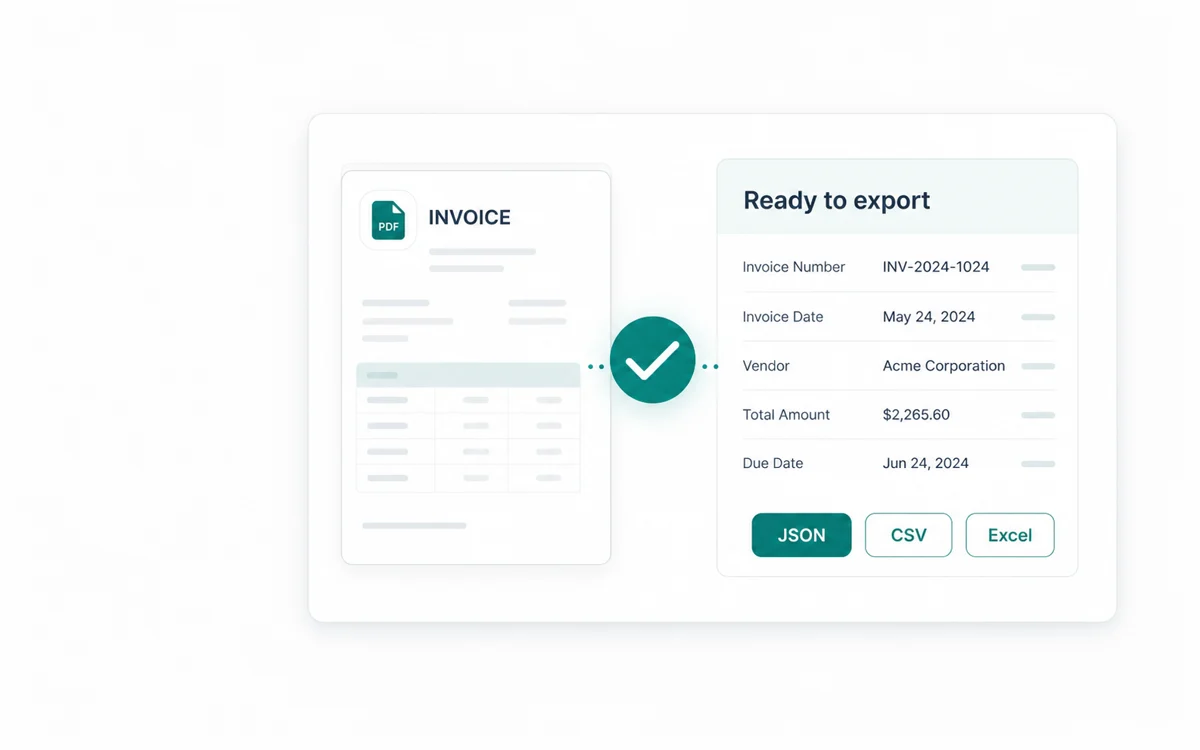
AI Document Parser for the Exact Data You Need
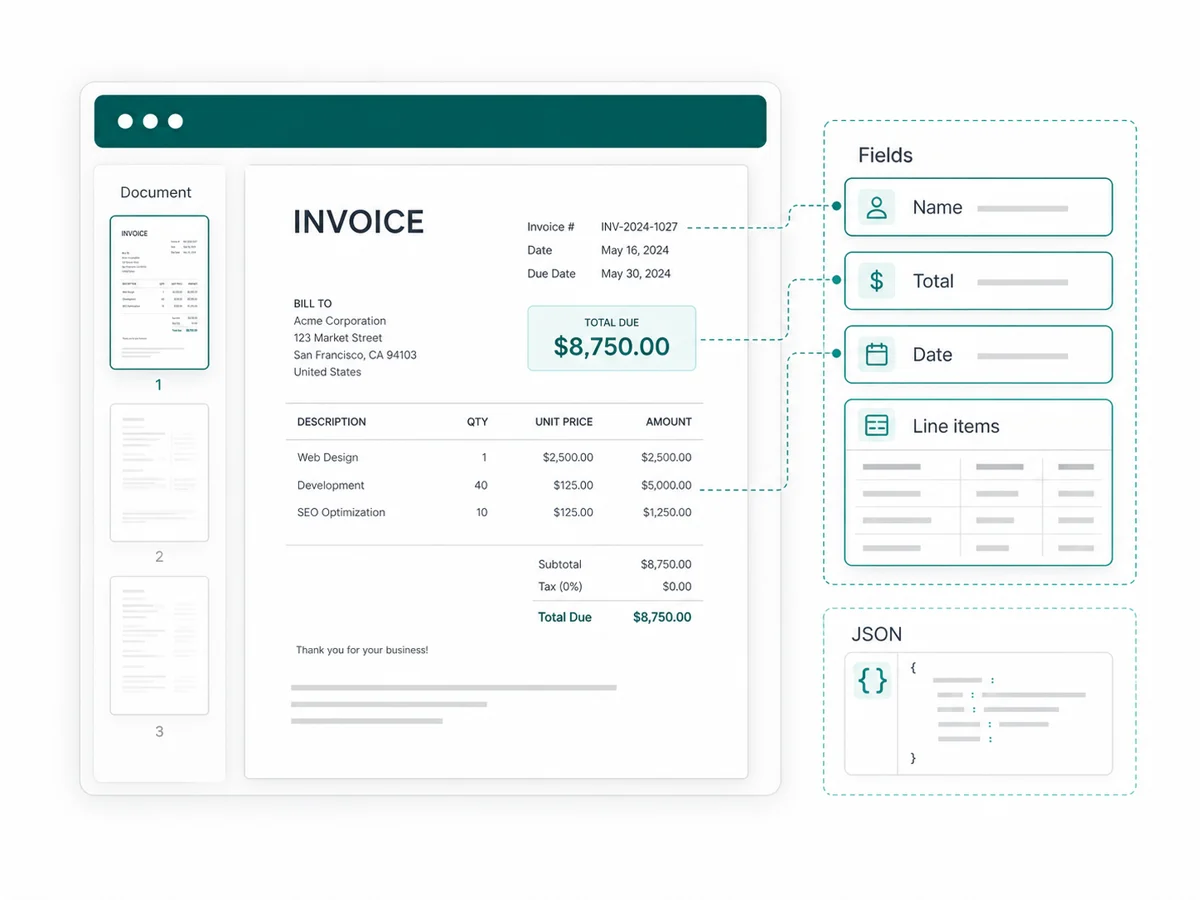
How to parse documents with AI
Build a repeatable document data extraction workflow in three clear steps—no fixed zones or manual retyping required.
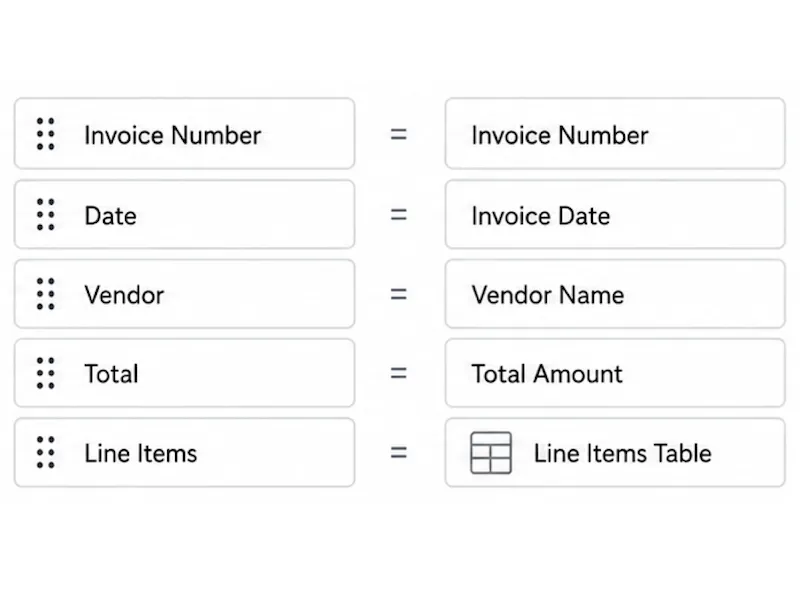
Define the data you want
Create a custom schema for names, dates, amounts, addresses, table columns, or other business-specific fields. Defining the output first keeps every result consistent and useful.
Upload your documents
Add PDFs, images, or readable scans from your workflow. Vellparser reads the content, layout, and context to map the information into the fields you defined.
Review and export
Compare the extracted values with the original document, correct anything that needs attention, and export structured data as JSON, CSV, or Excel.
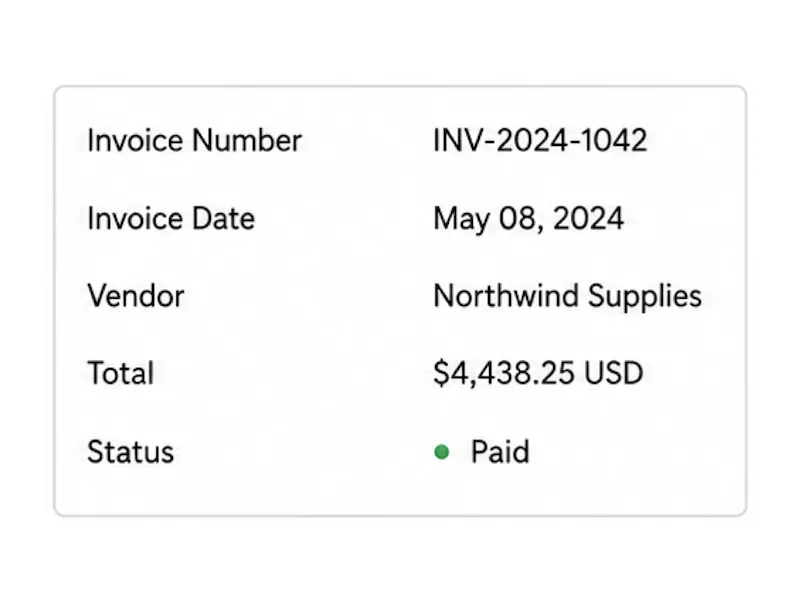
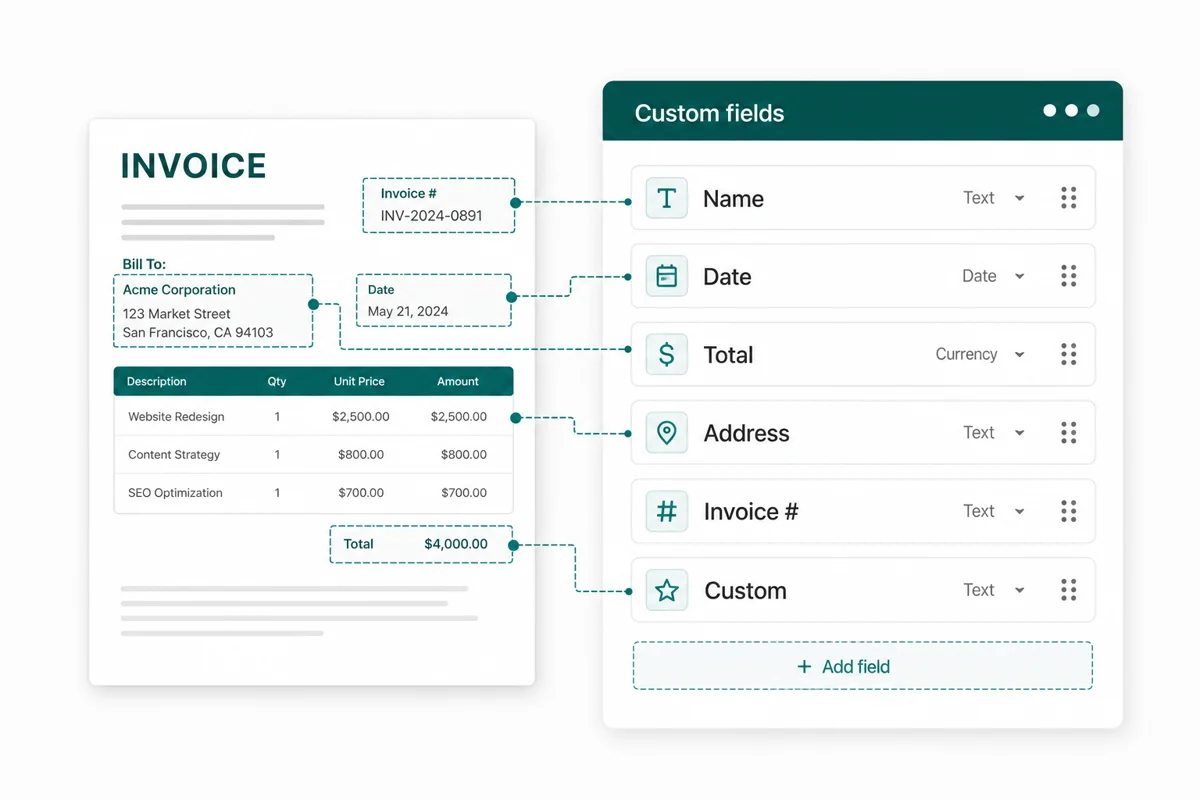
Extract the fields your workflow actually needs
Instead of receiving a generic text dump, define a schema for the exact names, dates, totals, reference numbers, and custom values you need. Vellparser maps document content into that structure, so the result is ready for your process rather than another round of cleanup.
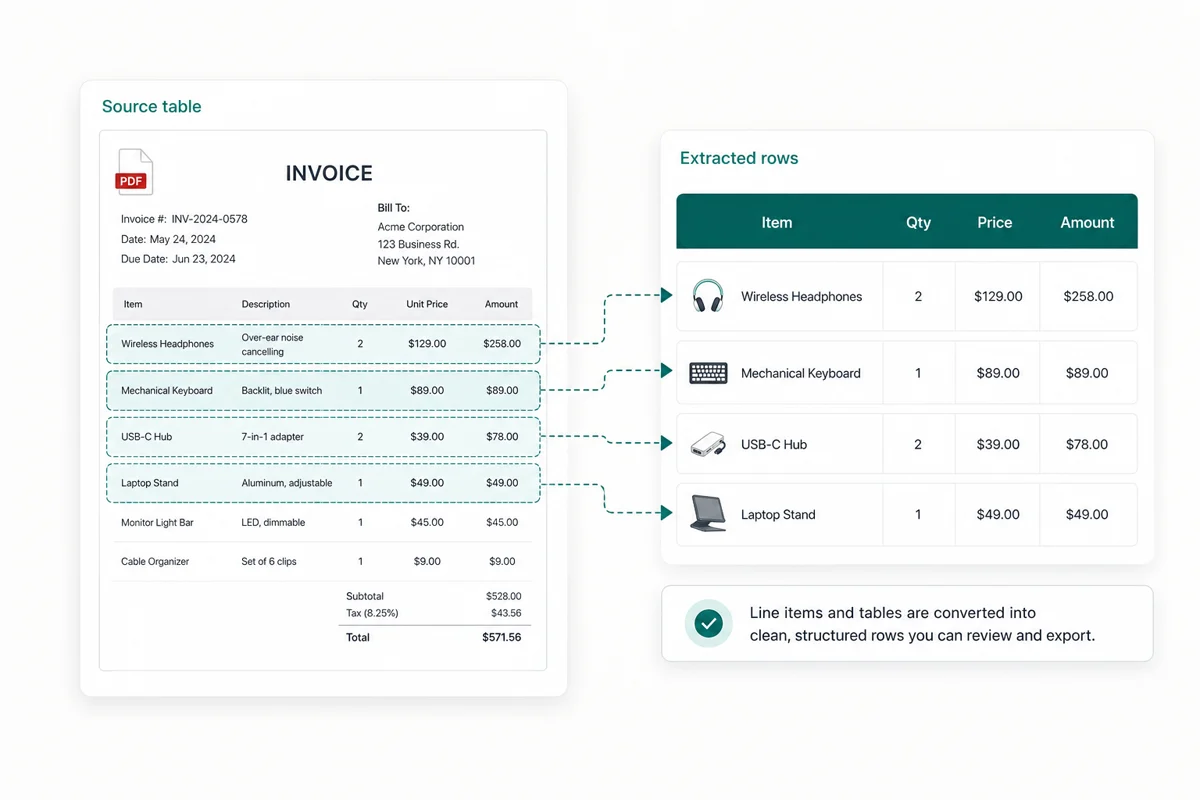
Turn tables and line items into clean rows
Define the columns once, then extract invoice line items, statement transactions, purchase order details, and report tables into structured rows. AI table extraction from PDFs replaces cell-by-cell copying with data you can review and use right away.
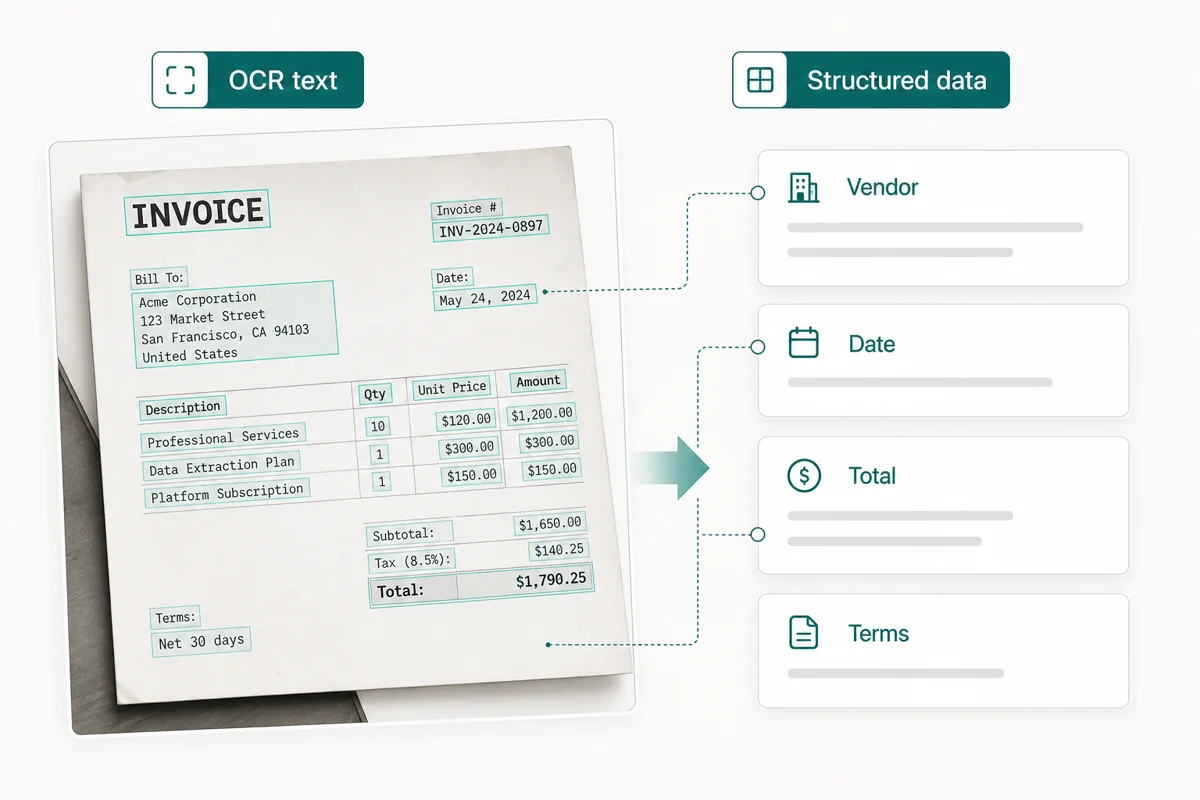
Go from OCR to structured data
Process text-based PDFs, images, and readable scanned documents in the same extraction workflow. Vellparser combines recognized text with labels, layout, and context to organize the content into named fields—not just a page of unstructured text.
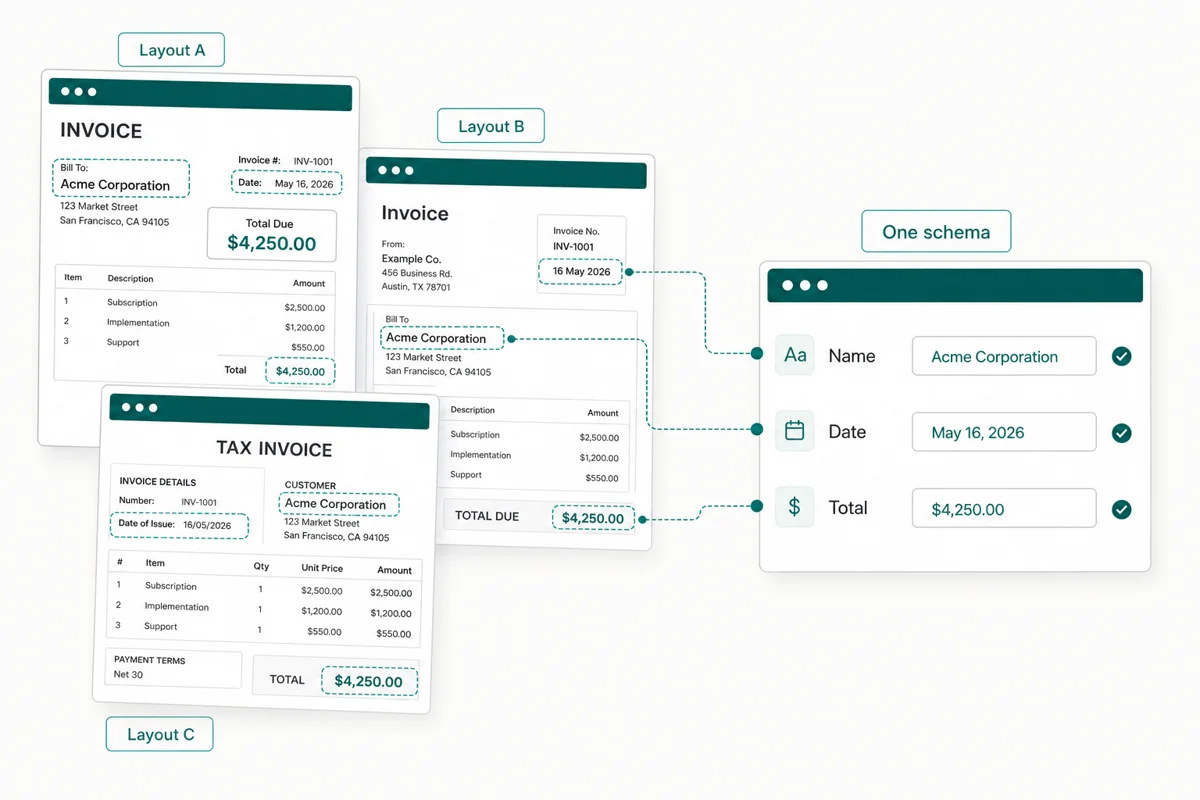
Keep extracting when layouts change
Invoices, forms, and reports from different sources rarely place information in the same coordinates. Schema-guided AI document parsing looks at meaning and context, allowing you to reuse one field structure across similar documents with changing layouts.
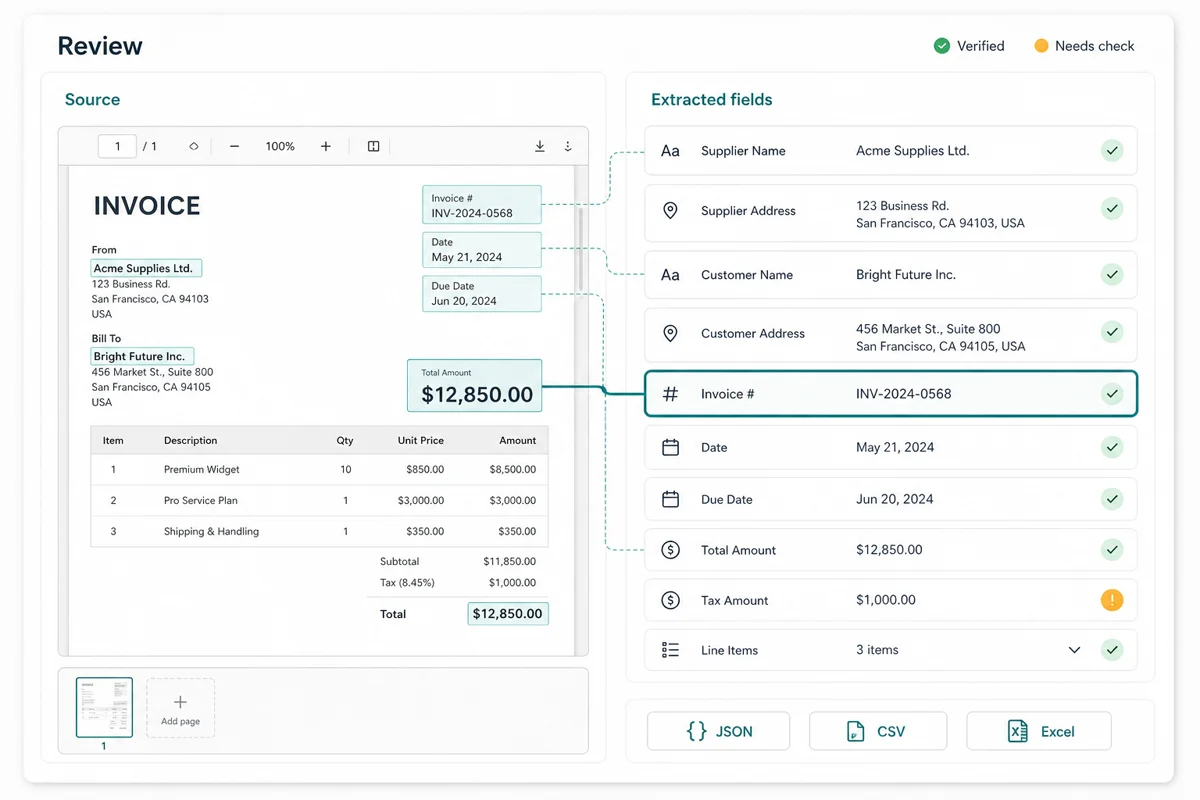
Check every important value before export
View extracted fields beside the source document so you can verify names, dates, amounts, and unusual entries in context. This review step keeps you in control and helps prevent questionable data from moving into spreadsheets, databases, or later workflows.
Where an AI document parser saves manual work
Create a structured output for recurring business documents, even when the source files and layouts are not identical.
Invoices, receipts, and purchase orders
Capture supplier names, invoice numbers, dates, taxes, totals, and line items in a consistent structure for finance and operations workflows.
Statements and tabular reports
Convert transaction rows, balances, dates, descriptions, and report tables into structured data for review, analysis, and reconciliation.
Forms, contracts, and reports
Extract parties, reference numbers, dates, terms, answers, and other custom fields without searching each page and copying values by hand.
AI document parser FAQs
An AI document parser reads a document, finds the information you ask for, and returns it in a defined structure. It turns unstructured PDFs, images, and scans into named fields, key-value pairs, tables, or rows that are easier to review and use.
OCR recognizes the text visible on a page. AI document parsing goes further by using labels, layout, and context to decide what that text means and where it belongs—for example, separating an invoice number from a due date or organizing line items into rows.
No. You define the fields and output structure you need rather than drawing fixed zones on each page. The same schema can be reused across similar documents when labels, suppliers, or layouts change, although unusual files should still be reviewed.
Yes. Vellparser can process readable scanned PDFs and images as well as text-based PDFs. Clear, correctly oriented files give the parser better input; blur, poor contrast, cropping, handwriting, and complex layouts can require closer review.
Yes. You can define table columns and extract repeating rows such as invoice line items, bank transactions, purchase order details, or report entries. Review the rows beside the source before exporting them.
You can define fields for the information your workflow needs, including names, dates, amounts, addresses, identifiers, descriptions, and nested table data. Clear field names and instructions help the parser return more consistent results.
Yes. Export structured results as JSON for applications and databases, or as CSV and Excel for spreadsheet-based review, analysis, and sharing.
Accuracy depends on scan quality, layout complexity, and how clearly the requested fields are defined. Vellparser lets you compare extracted data with the source document so important values can be checked and corrected before export.
Turn your next document into usable data
Define the fields you need, upload a PDF or image, and see the structured result beside the source before you export it.