AI PDF Parser That Turns Documents Into Usable Data
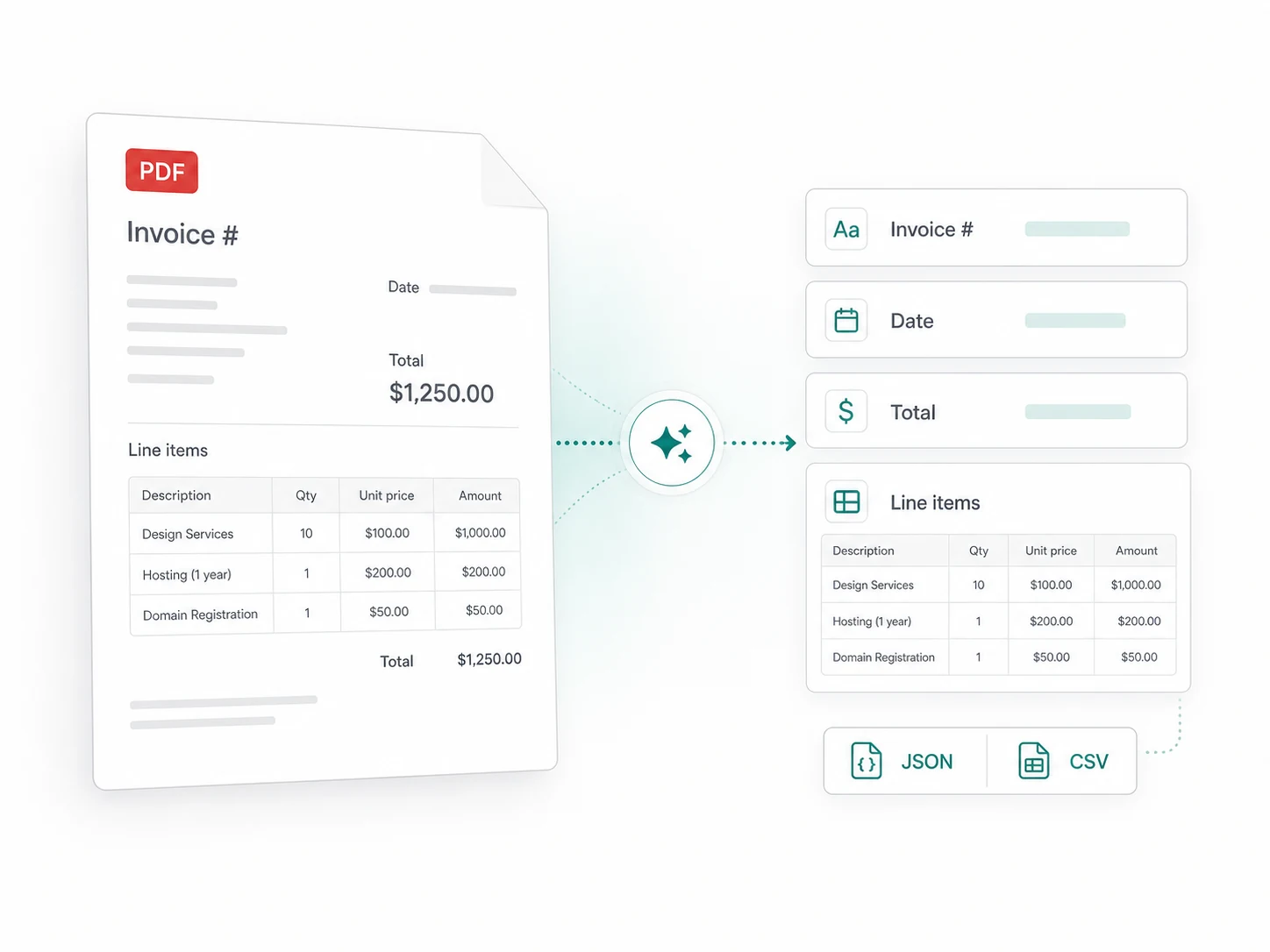
How to parse a PDF into structured data
Set up a repeatable PDF data extraction workflow in three clear steps—without copying values or rebuilding a parser for every layout.
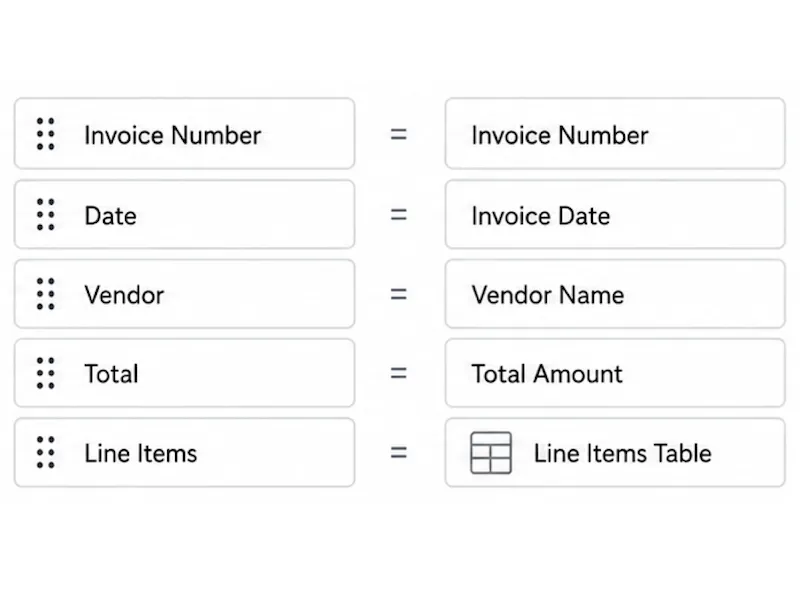
Define the fields you need
Choose the names, dates, amounts, reference numbers, table columns, and other values your workflow needs. A clear schema gives every parsed PDF the same usable structure.
Upload your PDF
Add a text-based PDF or readable scanned document. The PDF parser reads the content, labels, layout, and context to place information into your defined fields.
Review and export
Compare the extracted values with the original PDF, correct anything that needs attention, and export clean JSON, CSV, or Excel data for your next step.
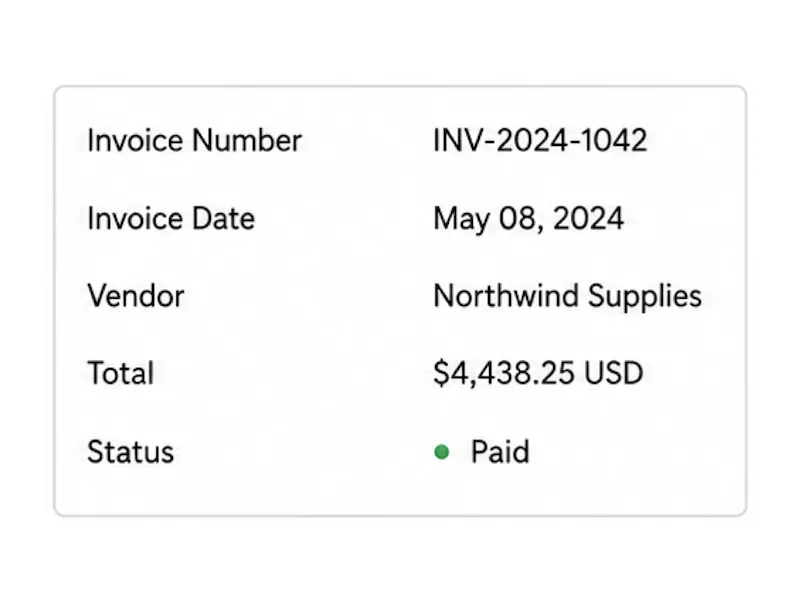
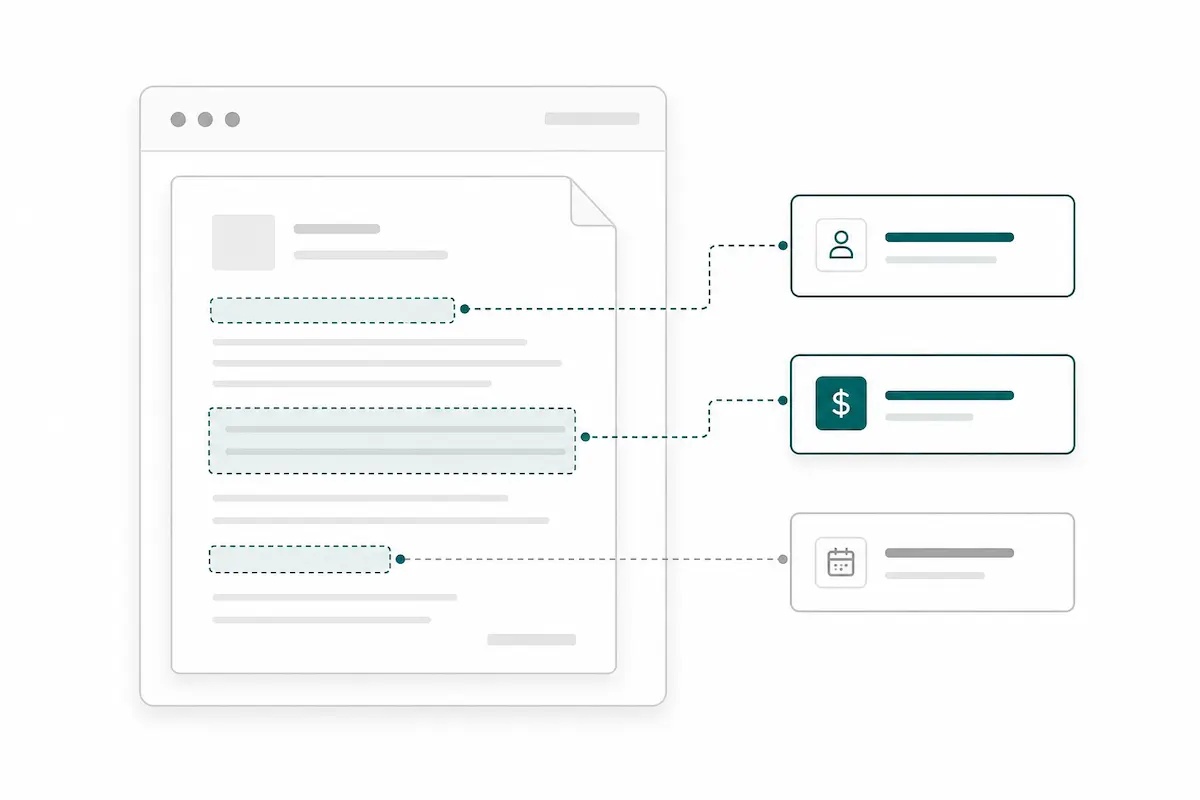
Extract the data you actually need
Define custom fields for invoice numbers, dates, totals, names, addresses, IDs, or business-specific values. Instead of receiving a generic text dump, you get structured PDF data shaped for your spreadsheet, database, or workflow.
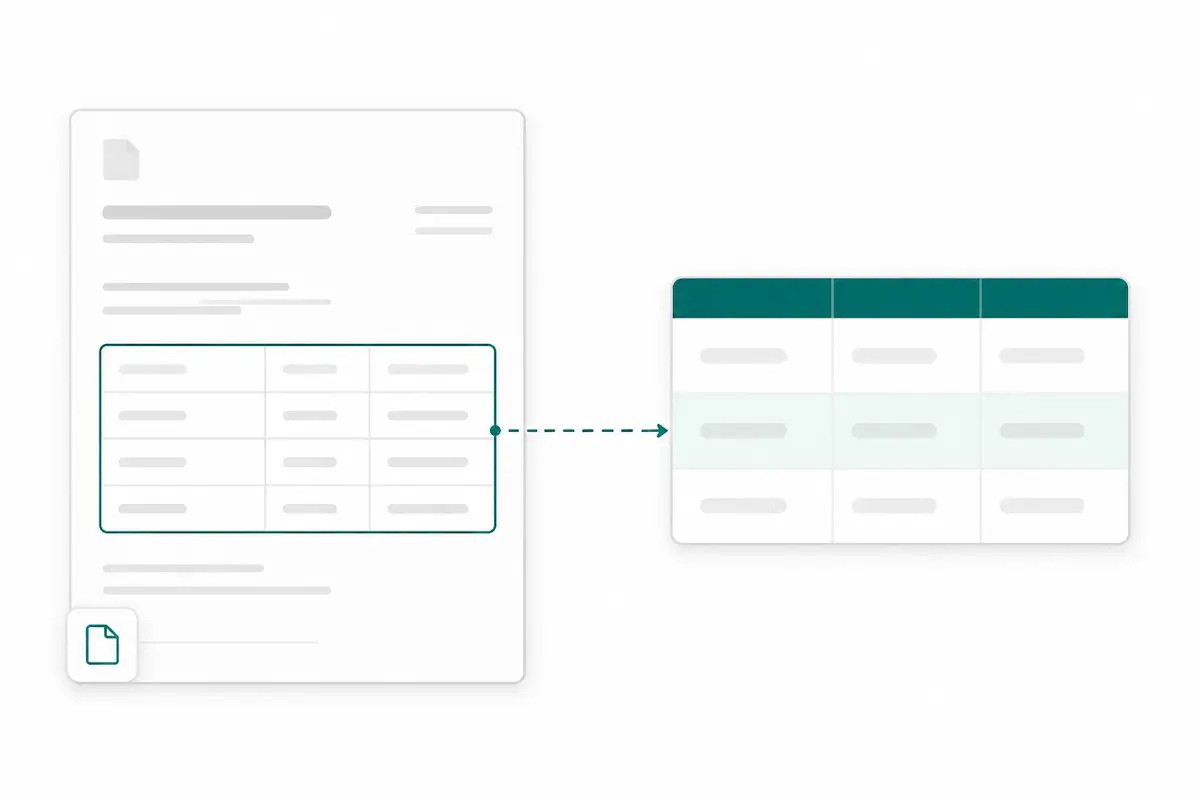
Extract PDF tables into clean rows
Set the columns once, then capture repeating rows such as invoice line items, statement transactions, purchase order details, and report data. PDF table extraction turns information trapped in cells into rows you can review, filter, and export.
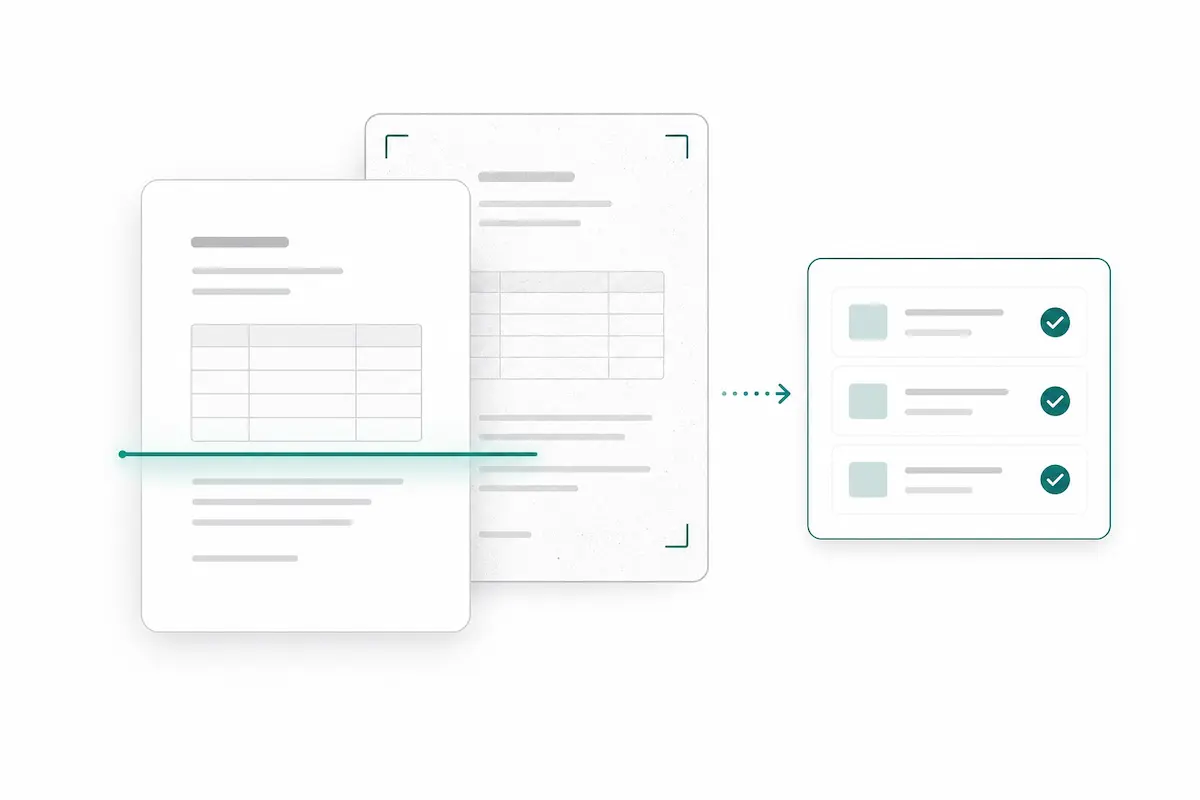
Parse scanned PDFs with OCR and context
For readable scanned PDFs, Vellparser recognizes the visible text and uses nearby labels and layout to understand what each value means. You get named fields and tables rather than a long block of OCR text that still needs manual cleanup.
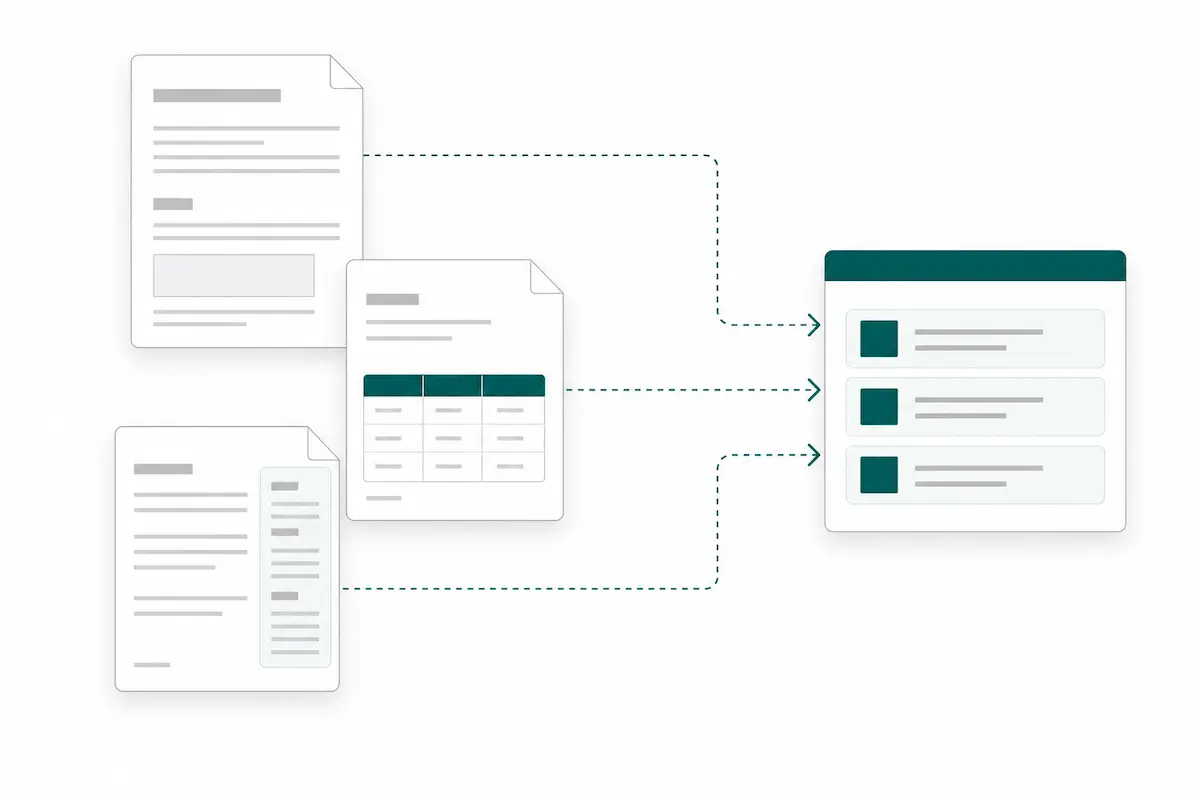
Reuse one schema across changing layouts
Suppliers and systems rarely place the same information in identical coordinates. Schema-guided PDF parsing looks at labels and context, helping you extract the same fields from similar documents even when their layouts change.
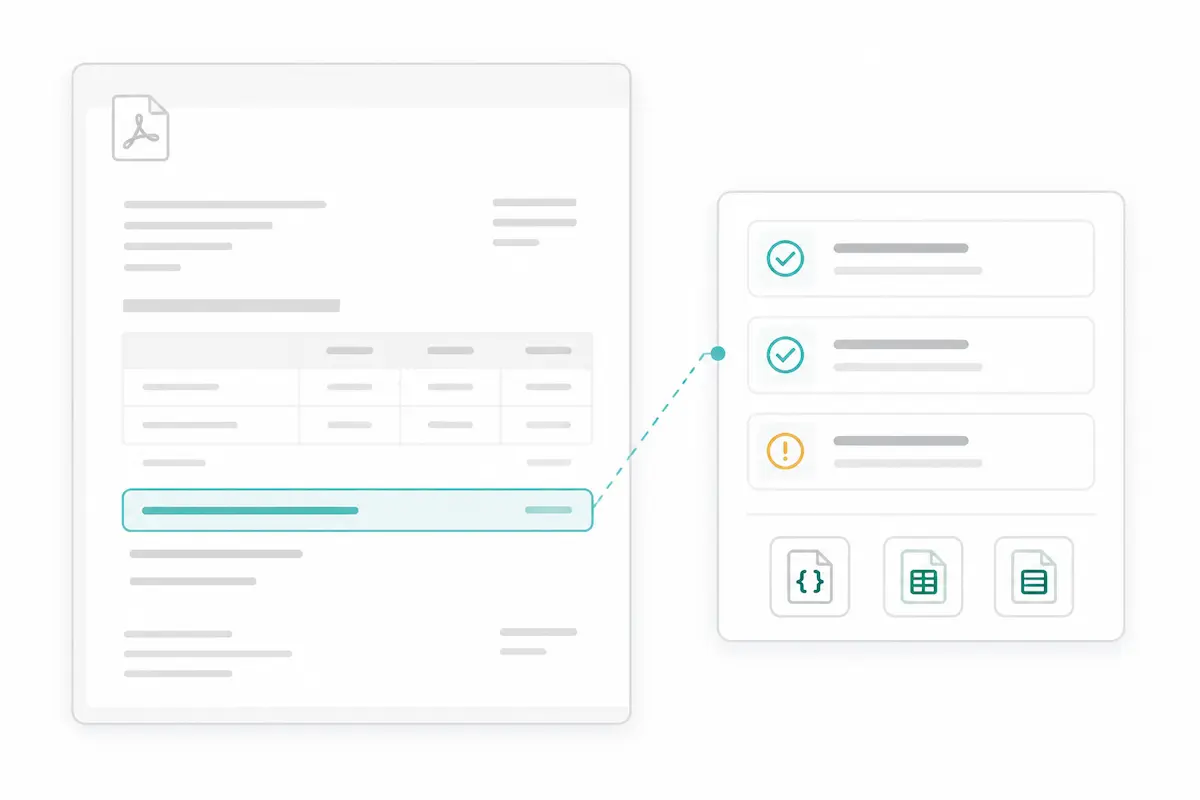
Verify results before they move downstream
Review extracted fields beside the original PDF so names, dates, amounts, and unusual entries stay in context. Fix anything that needs attention before exporting, reducing the chance that questionable data reaches a spreadsheet or database.
What can you do with a PDF parser?
Turn recurring documents into consistent data for finance, operations, analysis, and software workflows.
Convert PDF to JSON
Return named fields, typed values, and table rows as structured JSON for applications, databases, and automated workflows.
Parse invoices and receipts
Capture suppliers, invoice numbers, dates, taxes, totals, and line items without typing each value into your system.
Extract bank statement data
Turn transaction dates, descriptions, amounts, and balances into structured rows for review, analysis, or reconciliation.
Capture forms and contracts
Find parties, dates, identifiers, terms, answers, and other custom fields without searching and copying page by page.
Process scanned PDFs
Use OCR-based PDF parsing to organize readable scans into useful fields instead of stopping at unstructured text.
Standardize recurring documents
Apply one reusable extraction structure to similar PDFs from different suppliers, customers, or reporting systems.
PDF parser FAQs
A PDF parser reads a PDF and converts its contents into a format that software or people can use more easily. Vellparser focuses on structured PDF data extraction, returning the specific fields and tables you define instead of only extracting plain text.
Basic PDF text extraction returns the characters it finds, often without explaining their meaning. An AI PDF parser uses labels, layout, and context to organize that content into named fields and table rows, such as separating an invoice date from a due date.
Yes. Vellparser can process readable scanned PDFs as well as text-based files. Clear, correctly oriented scans produce better input; blur, poor contrast, handwriting, cropping, and complex layouts may require closer review.
Yes. Define the columns you need and the PDF table parser can extract repeating rows such as invoice line items, bank transactions, purchase order details, or entries in a report. You can review the rows against the source before export.
No. You define the fields and table columns you need rather than drawing fixed zones on every page. The same schema can be reused across similar documents with changing layouts, although unusual files should still be checked.
Yes. Export parsed PDF data as JSON for applications and databases, or use CSV and Excel for spreadsheet review, analysis, and sharing.
You can define string, number, boolean, and table fields for names, dates, amounts, addresses, identifiers, descriptions, line items, and other information your workflow needs. Clear field names and instructions help produce more consistent output.
Accuracy depends on scan quality, document layout, and how clearly the requested fields are defined. Vellparser lets you compare extracted data with the source PDF so important values can be checked and corrected before export.
Turn your next PDF into structured data
Define the fields you need, upload a PDF, and review the result beside the source before exporting it as JSON, CSV, or Excel.